As an Amazon Associate I earn from qualifying purchases.
You finally snagged that library loan with the fake-dating setup, two hundred people ahead of you in line, and a hero who sounds like a walking red flag. The last thing you need is a confusing device detour.
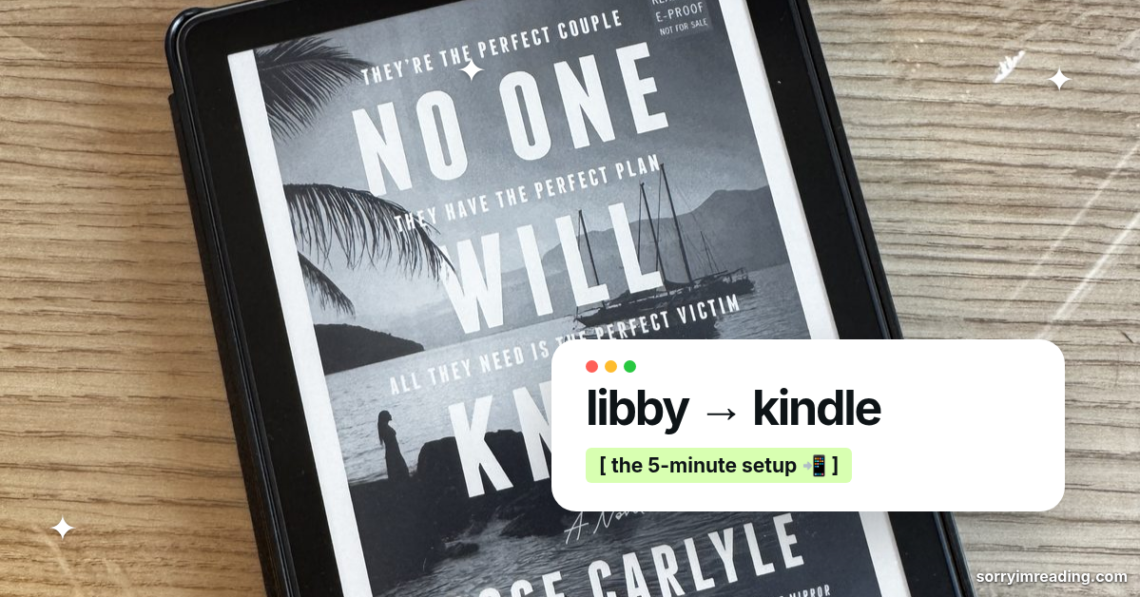
The good news is that you can open the libby app to borrow ebooks from your local library, and then send libby books kindle in a few taps. You can read on your actual e-reader instead of your phone. No tiny screen. No squinting. Just you, your blanket, and the third-act breakup you know is coming.
Key Takeaways
- You borrow the ebook in Libby, then finish delivery through Amazon.
- The title must offer read with kindle as a supported format before you borrow it.
- Use the Amazon account connected to your Kindle, then select the right kindle device.
- Turn on Wi-Fi and sync your Kindle if the book doesn’t appear right away.
- Sending books to a kindle ereader is different from opening a loan inside the Libby app.
Check These Things Before You Borrow
First, a tiny reality check: your Kindle can’t run the Libby app. You do the borrowing part on a phone, tablet, or computer, because the Libby app by OverDrive works across desktop and mobile devices, then Libby sends you over to Amazon for the delivery step.
You also need an active library card and a Kindle registered to an Amazon account. If you read in the Kindle app on your phone or tablet too, that’s fine. Amazon will let you pick where the book lands.
The bigger issue is the ebook format. Not every title in Libby can go to a Kindle. Before borrowing, open the book’s details and look for Kindle under the available reading options. If it isn’t there, the book may only work as a standard epub file or through another e-reader method, so verifying that the title is supported by Kindle is crucial. To make this easier, you can filter by format when searching to avoid non-compatible titles.
This can be mildly annoying when you’re staring at a perfect book cover at 11:47 p.m. But check the format before you hit Borrow. It saves you from the emotional whiplash of getting your book and realizing it won’t go where you want it.
Libby’s official guide to reading Kindle books on a Kindle e-reader confirms the basic setup: borrow through Libby, select Kindle as your reading option, then claim the library book through Amazon.
A Kindle-compatible loan is still a library loan. The book disappears when its due date hits, even if Amazon delivered it to your device.
How to Send Libby Books to Kindle, Step by Step
Once your book is borrowed, the handoff is quick. It feels like a few extra taps the first time. After that, it becomes part of the ritual, right up there with checking the page count and searching reviews for the spice level.
- Open Libby on your phone, tablet, or computer. Tap Shelf at the bottom of the app, then open your active Loans.
- Find the book you borrowed. Tap the cover or select Read With…. On some versions of Libby, you may see the Read With option right away.
- Choose Kindle. Libby opens a browser window and takes you to the official Amazon website. Don’t panic when you leave the Libby app. That’s supposed to happen.
- Sign in to Amazon. Use the same Amazon account connected to your Kindle. If you have an old account, a shared household account, or multiple Kindles, pause here and double-check. Sending your new romance to somebody else’s device is not the vibe.
- Choose your destination device. Amazon may show a “Deliver to” menu. Pick your Kindle or the Kindle app, depending on where you plan to read.
- Tap “Get Library Book.” Click or tap Get Library Book, which is the final button that adds the loan to your Amazon library and sends it to the chosen device.
- Sync your Kindle over Wi-Fi. Open your Kindle’s library and give it a moment. If the title isn’t there, sync or refresh the device, then check again.
That is how to send Libby books to Kindle without downloading files, emailing yourself anything, or doing weird USB rituals from 2014. The standard process is Libby to Amazon to your Kindle.

If you accidentally opened the book in Libby first, you can still switch. Go back to your shelf, open the loan, choose Manage Loan if needed, then look for the reading options and select Kindle. You haven’t ruined anything. Your fictional boyfriend is still waiting.
Pick Your Next Romance Without Leaving Libby
The libby app is wildly good for chaotic mood readers because you can borrow based on a feeling, not a reading plan you made three months ago and immediately ignored.
Want banter and forced proximity? Search those Tropes in your library’s catalog, then use the format filter to find ebooks. Need something cozy and low-stress after a thriller that wrecked your nervous system? Browse contemporary romance and look for shorter wait times. Craving a dagger-wielding heroine, a morally gray love interest, and some magic with consequences? Head straight for Romantasy.
A few search tweaks help when you want Romance Books that actually match the moment:
- Search an author you already trust, then use Libby’s available-now filter.
- Save titles to your tags when you find them, even if the wait list is rude.
- Check the series order before borrowing book two because confusion is not a fun bonus trope.
- Place holds on several books with a similar mood, not one exact title.
Don’t treat the hold list like a TBR prison. It is a menu. Some weeks you want Emily Henry energy. Other weeks you want a high-stakes fantasy romance where everyone makes terrible decisions for love. Both are valid.
If a title is eligible, you can borrow ebooks to read on your device after each checkout. Your Kindle library becomes a neat little stack of kindle books for your current reads, even when your actual reading mood is doing laps around the room. For even more romance reads on your Kindle, check out these Kindle Unlimited romance books worth the borrow.
Why the Kindle Option Is Missing Sometimes
The most common problem is simple: the title isn’t available in Kindle format through your library. When you try to transfer libby books, a title can be an ebook in Libby and still not be a Kindle ebook. Publishers control formats, and library collections vary.
You might also miss the Kindle option by selecting the epub format first. Once you pick another format, Libby may not let you switch that same loan to Kindle, meaning you might just have to read in app instead. Its help page on missing Kindle delivery explains that you may need to borrow the book again if another format was chosen.
There are a few other usual suspects:
- Wrong Amazon account: The book goes to an account your Kindle doesn’t use.
- Wi-Fi is off: The delivery went through, but your Kindle hasn’t checked in.
- Wrong device selected: Amazon sent the book to your Kindle app instead of your e-reader.
- A stalled browser handoff: Close the Amazon page, return to Libby, and try “Read with Kindle” again.
When the book is nowhere to be found, open your account on the official amazon website, specifically looking at your Content Library. Library loans appear there alongside purchased titles. You can often deliver the book to another registered Kindle from that page.
A practical Libby-to-Kindle walkthrough also covers the common “where did my book go?” moments, including the difference between completing the transfer in a browser and reading inside Libby.
Make Holds and Loan Time Work for You
Romance wait lists can be brutal, especially for a buzzy release or a popular backlist favorite. Libby lets you suspend a hold, which is perfect when three books become available during the same chaotic week. Your hold keeps its place while you catch up.
When a hold arrives, you can often delay delivery rather than borrowing it immediately. Use that option if you’re halfway through a book with real momentum. Don’t toss a five-star read aside because a library notification is yelling at you.
Loan lengths vary by library, but you can see the exact due date in Libby before you start. If the library book has you in a chokehold, turn on airplane mode after it downloads to your Kindle. The file can stay on the device after the loan ends, though you won’t be able to sync progress or access it again once you reconnect.
That trick is for finishing a book you already borrowed, not for keeping it forever. Return loans early when you’re done so the next reader gets their happily-ever-after sooner.
Frequently Asked Questions
Can I read Libby books directly on my Kindle e-reader?
No, your Kindle cannot run the Libby app. You must borrow the book on a phone, tablet, or computer first, and then use the “Read with Kindle” option to send it to your Amazon account for delivery.
What should I do if the Kindle option is missing for a book?
Not every ebook in Libby is available in Kindle format due to publisher restrictions. Always check the book’s details for a Kindle option before borrowing, or use the format filter in your search.
Why hasn’t my borrowed book appeared on my Kindle yet?
First, make sure your Kindle is connected to Wi-Fi and manually sync the device. If it still doesn’t show up, check your Amazon Content Library to ensure the book was delivered to the correct Kindle device and account.
Your Kindle Is Ready for the Good Part
To send libby books kindle, borrow a Kindle-compatible title in Libby, choose “Read with Kindle,” claim it through Amazon, and sync your kindle device. That’s it.
The setup takes a minute. Then your library’s romance shelf is right there on your Kindle, ready for the late-night “one more chapter” lie.
grab the free skip to the good part checklist
100 reader-approved spicy scenes in one cute printable. check them off, star your rereads, send it to the group chat. plus my sunday email (one a week, unsubscribe anytime).
you're already on the list 💗 the checklist link is in your welcome email.
one email a week. no spam, no amazon links in your inbox. unsubscribe anytime.


3 Comments on “Send Libby Books to Your Kindle: Easy Start Guide”